# Install required packages
!pip install --upgrade --quiet playwright
!pip install --upgrade --quiet beautifulsoup4
!pip install --upgrade --quiet lxml
!pip install --upgrade --quiet html5lib
!pip install --upgrade --quiet pandas
!pip install --upgrade --quiet nest_asyncio

print('✓ Packages installed!')
Slides: browser-automation.pdf
In this example we are going to scrape the OpenSyllabus works page for books included on college syllabi.
Traditionally Python programmers use BeautifulSoup to scrape content from the interent. Instead of being traditional, we're going to use Playwright, a browser automation tool! This means you actually control the browser! Filling out forms, clicking buttons, downloading documents... it's magic!!!✨✨✨
OpenSyllabus works list
What we'll learn/use
- Selectors
- 'Show more' button pagination
- Creating and saving a dataframe
Installation
We need to install a few tools first! Remove the # and run the cell to install the Python packages and browsers that we'll need for our scraping adventure.
# %pip install --quiet lxml html5lib beautifulsoup4 pandas
# %pip install --quiet playwright
# !playwright install-deps
# !playwright install chromium firefox
We'll also set it up so that Playwright works well in Windows on a Jupyter notebook.
# Detect if we're running in Google Colab
import os
IN_COLAB = 'COLAB_GPU' in os.environ or 'COLAB_RELEASE_TAG' in os.environ

import platform
import asyncio
import nest_asyncio

if platform.system() == "Windows":
    asyncio.set_event_loop_policy(asyncio.WindowsProactorEventLoopPolicy())

try:
    asyncio.get_running_loop()
    nest_asyncio.apply()
except RuntimeError:
    pass
Requests + BS4 = doesn't work
First, let's see what it looks like when we're scraping a "normal" site. You grab the page, you tell BeautifulSoup what you want, you get it.
import requests
from bs4 import BeautifulSoup

response = requests.get("https://bbc.com")
doc = BeautifulSoup(response.text)
headlines = doc.find_all('h2')
headlines[:5]
But now let's try it with a site that does not work with this "normal" approach to scraping. We'll be using the OpenSyllabus works page.
import requests
from bs4 import BeautifulSoup

response = requests.get("https://analytics.opensyllabus.org/record/works")
doc = BeautifulSoup(response.text)
No errors yet, but let's try to find some book titles...
doc.find_all(class_='sc-9d100f21-9 bNgiIK')
No luck! But maybe our class_= magic is wrong? Who even knows how that works? We can use doc.text to look at alllllllll of the text on the page.
print(doc.text)
Looks like the content isn't even on the page. Now we can move on to Playwright!
Opening up the browser and visiting our destination
In the example below, we can choose a setting for headless.
headless=Truemeans "hide the browser"headless=Falsemeans "show the browser"
from playwright.async_api import async_playwright

# "Hey, open up a browser"
playwright = await async_playwright().start()

# Colab can't open a visible browser, so we run headless there
if IN_COLAB:
    use_headless = True
else:
    use_headless = False

browser = await playwright.chromium.launch(headless=use_headless)

# Create a new browser window
page = await browser.new_page()
await page.goto("https://analytics.opensyllabus.org/record/works")
If you run headless, you often want to take a screenshot to confirm what's going on in your scraping world. I usually recommend using headless=False until you confirm your scraper works, then change it to headless mode so it doesn't get in the way.
from IPython.display import Image

Image(await page.screenshot())
Clicking load more buttons
The page that we're looking at has plenty of data, but there's more in hiding – if you scroll to the bottom of the page you'll see a "Show more" button.
Let's grab it using page.get_by_text and click it.
await page.get_by_text("Show more").click()
Again! and again! And again! Let's click it five more times.
We'll wait one second between each click so it doesn't accidentally double-click the button.
import time

for i in range(5):
    await page.get_by_text("Show more").click(timeout=5000)
    print(f"Clicked, waiting 2 seconds...")
    time.sleep(2)
If you replaced the for i in range with while True it would click forever and ever. Eventually the "Show more" button runs out and there's no more button on the page: Playwright will wait for "Show more" for 30 seconds before returning an error.
Grab the content from the page
Now we need to get the content from the page. Everyone loves using BeautifulSoup to scrape, so why don't we just do that? You use await page.content() to save the contents of the page and feed it directly to BeautifulSoup.
from bs4 import BeautifulSoup

html = await page.content()
doc = BeautifulSoup(html)
Once you push the HTML from the Playwright page into BeautifulSoup, you can use all the same selectors and filters that you can in your "normal" scraping world.
titles = doc.find_all(class_='sc-9d100f21-9')
for title in titles[:10]:
    print(title.text)
Developing your selectors
Let's be honest: writing custom scraping code isn't anyone's favorite thing to do.
To put together your selectors to grab the "right" data, I suggest using my ChatGPT prompt to help. You can see the original prompt here if you'd like to use it with another AI tool.
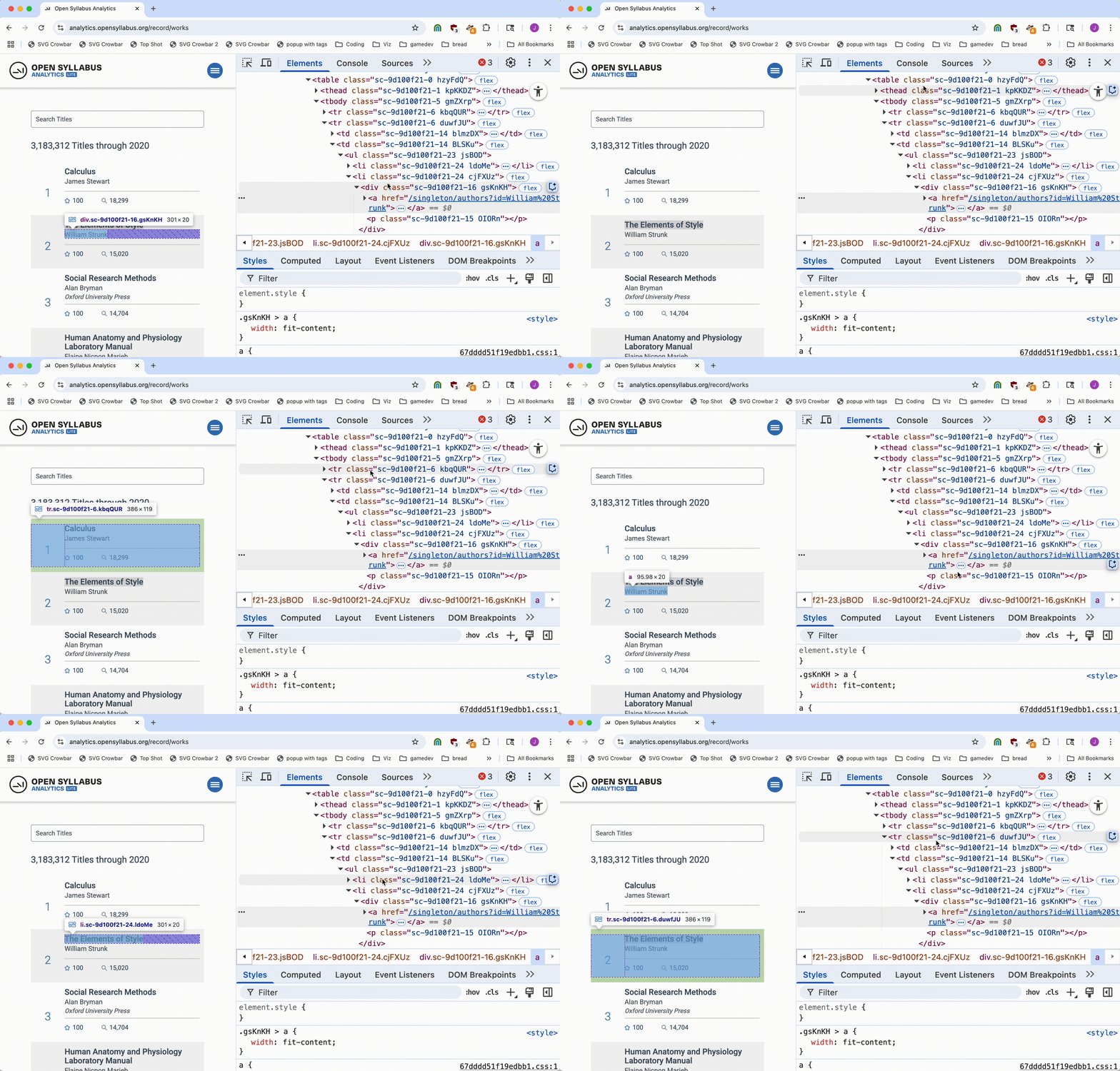
You want to right-click the data you're interested in, then select Inspect. That provides two approaches to finding your region of interest: either browsing around on the right-hand side...
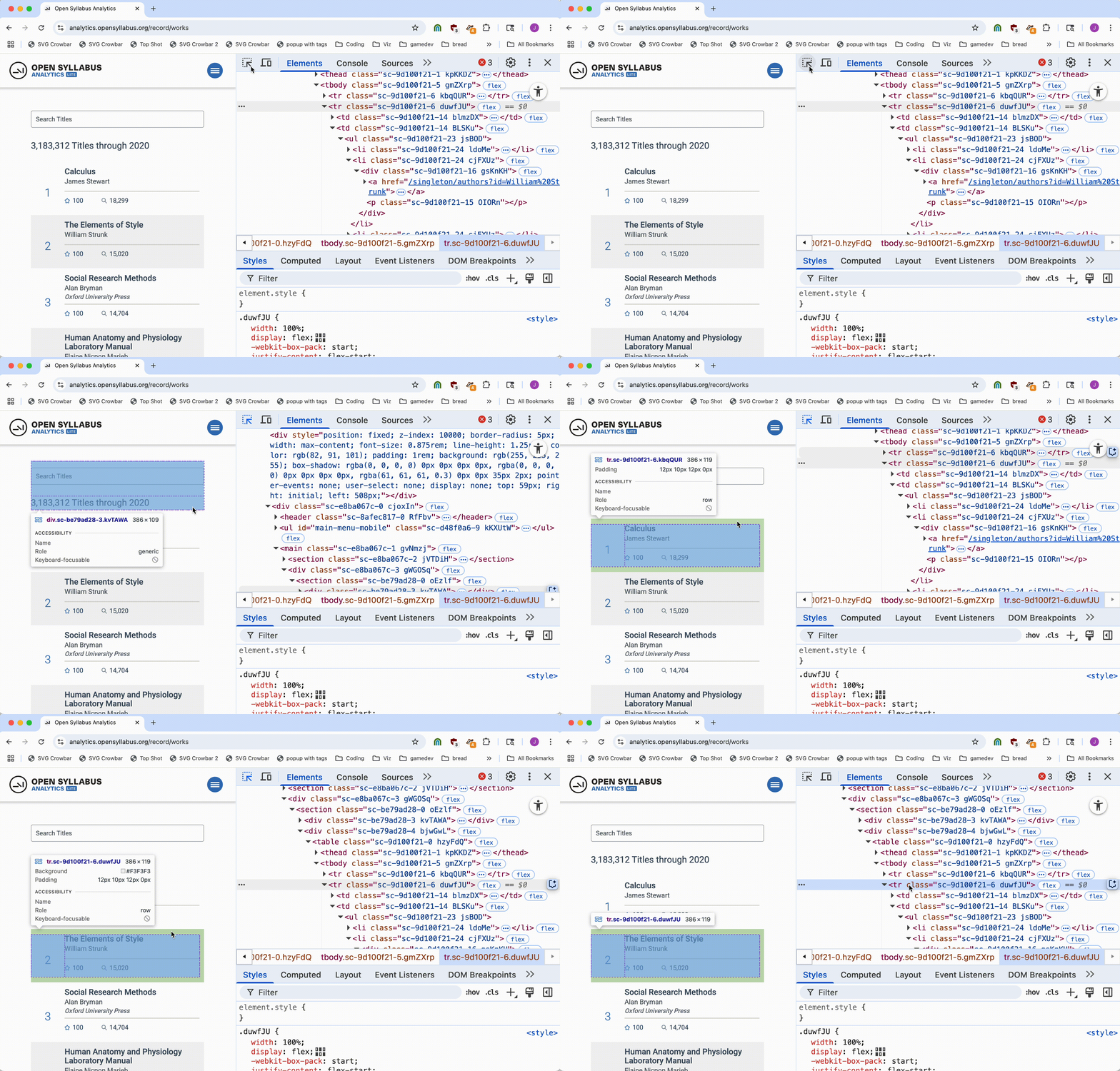
...or using the element selector and clicking on the left-hand side.
Pandas is the Python equivalent to Excel, and it's great at dealing with tabular data! If you can build a list of dictionaries it's fantastic for saving the content.
import pandas as pd

rows = []
for tr in doc.select("tr.sc-9d100f21-6"):
    row = {}

    try:
        row["rank"] = tr.select_one("p.sc-9d100f21-7").get_text(strip=True)
    except:
        pass

    try:
        row["title"] = tr.select_one("a[href^='/singleton/works'] p").get_text(strip=True)
    except:
        pass

    try:
        row["author"] = tr.select_one("a[href^='/singleton/authors'] p").get_text(strip=True)
    except:
        pass

    try:
        row["score"] = tr.select_one("div[name='score-star'] + p").get_text(strip=True)
    except:
        pass

    try:
        row["appearances"] = tr.select_one("div.elzFcv").get_text(strip=True)
    except:
        pass

    rows.append(row)

df = pd.DataFrame(rows)
df.head(10)
We clicked and clicked and clicked. How far down the list did we get?
df.tail(10)
Saving the file
Now we can save our pandas dataframe to a CSV to open up in Excel or wherever else!
df.to_csv("books.csv", index=False)