Images
You already know what to do with text: summarize it, answer questions about it, extract data from it. Images, audio, and video are just ways of getting to text and structured data.
Asking questions of images
It's easy enough to send an image to an LLM and ask it some questions. It's easy to read and great for a one-off, but very hard to sort or filter across hundreds of images.
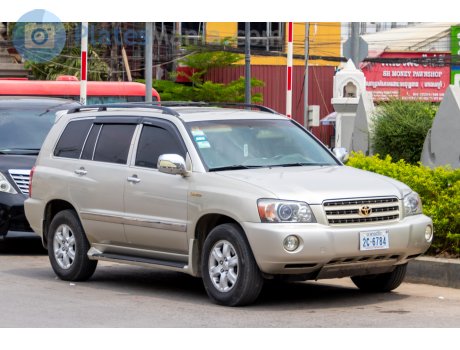
Let's get some details about this car.
vision-llm/raw-openai-text.py — Same task using raw OpenAI client, plain text response — no structured output
import base64
from pathlib import Path
from openai import OpenAI
MODEL = "gpt-5-nano"
DATA = Path("data")
client = OpenAI()
base64_image = base64.b64encode((DATA / "car.jpg").read_bytes()).decode("utf-8")
prompt = """List the following about this vehicle:
- make
- model
- type
- color
- estimated year
"""
response = client.chat.completions.create(
model=MODEL,
messages=[{"role": "user", "content": [
{"type": "text", "text": prompt},
{
"type": "image_url",
"image_url": {
"url": f"data:image/jpeg;base64,{base64_image}"
}
},
]}],
)
print(response.choices[0].message.content)
- Make: Toyota - Model: Sequoia - Type: Full-size SUV - Color: Champagne/beige - Estimated year: 2003
It's great, but... what if we want it in a CSV? What if we have 200 to do? What if we want to make demands and ask for structure?
Structured output
An alternative is to send an image to an LLM and get back structured output — fields you can sort, filter, and verify. Not prose. This is the pattern for everything else in the workshop!
vision-llm/structured.py — Send one image to an LLM, get structured Pydantic data back
from pathlib import Path
from typing import Literal
from pydantic import BaseModel, Field
from pydantic_ai import Agent, BinaryContent
MODEL = "openai:gpt-5-nano"
DATA = Path("data")
image_data = (DATA / "car.jpg").read_bytes()
class Vehicle(BaseModel):
make: str = Field(description="Vehicle manufacturer (e.g., Toyota, Ford)")
model: str = Field(description="Vehicle model name (e.g., Camry, F-150)")
color: str = Field(description="Primary color of the vehicle")
year_estimate: int = Field(description="Estimated model year (best guess)")
vehicle_type: Literal[
"sedan", "SUV", "truck", "van", "motorcycle", "other"
] = Field(description="Type of vehicle")
confidence: float = Field(description="Your confidence in this identification, 0.0 to 1.0")
Each field has a name, a type, and a description. The AI fills them in.
agent = Agent(MODEL, output_type=Vehicle)
result = agent.run_sync([
"Analyze the vehicle in this image. Fill in all fields accurately.",
BinaryContent(data=image_data, media_type="image/jpeg"),
])
result.output
Vehicle(make='Toyota', model='Sequoia', color='Beige', year_estimate=2005, vehicle_type='SUV', confidence=0.62)
While there are a handful of ways to do this, we're specifically using a Python library called Pydantic AI. It gives you a lot of tools to describe what you're looking for: each field has a name, a type, and a description. AI fills in the fields. It works with all the major providers and handles images, audio, video, and documents.
Easy peasy!
Batch processing
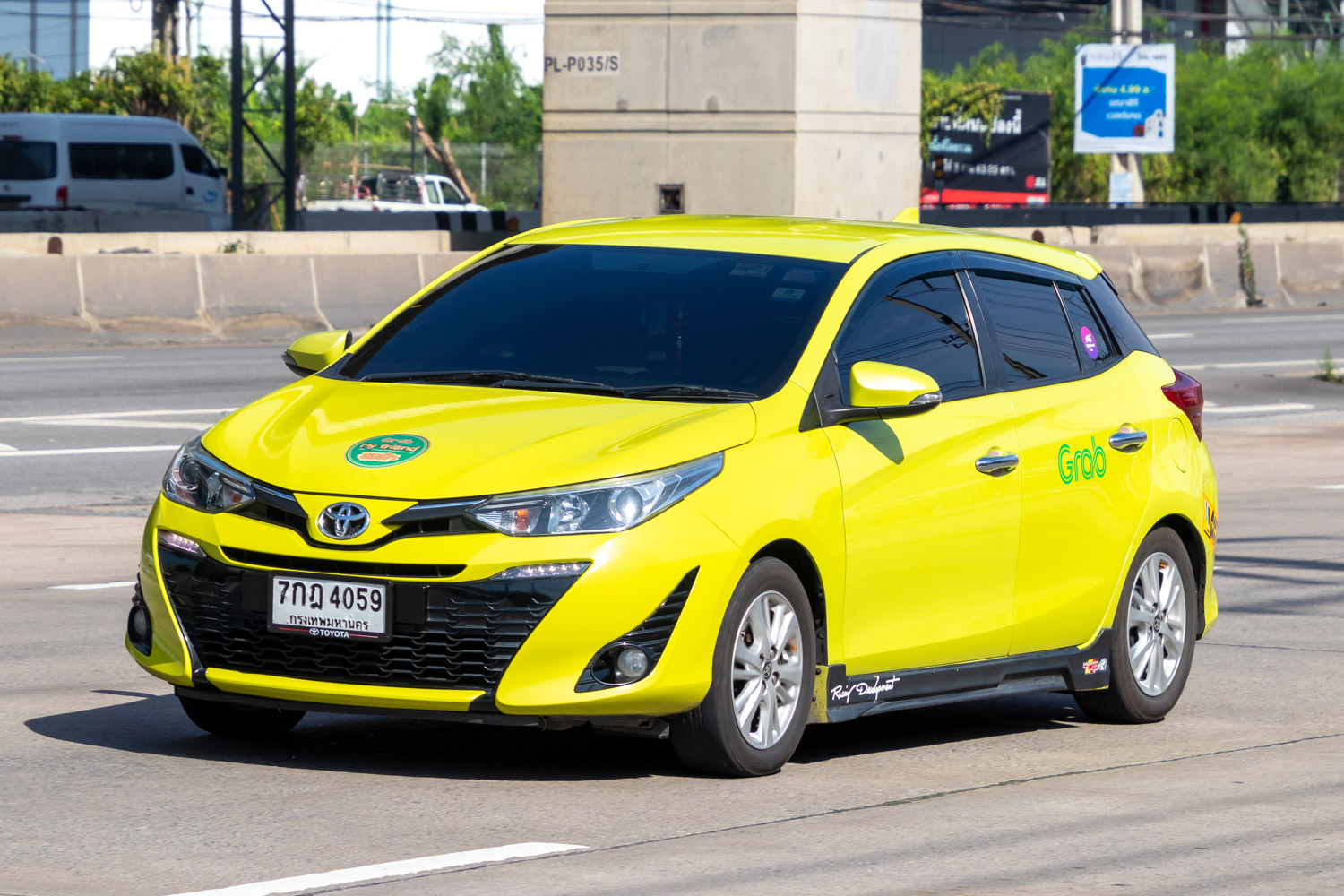
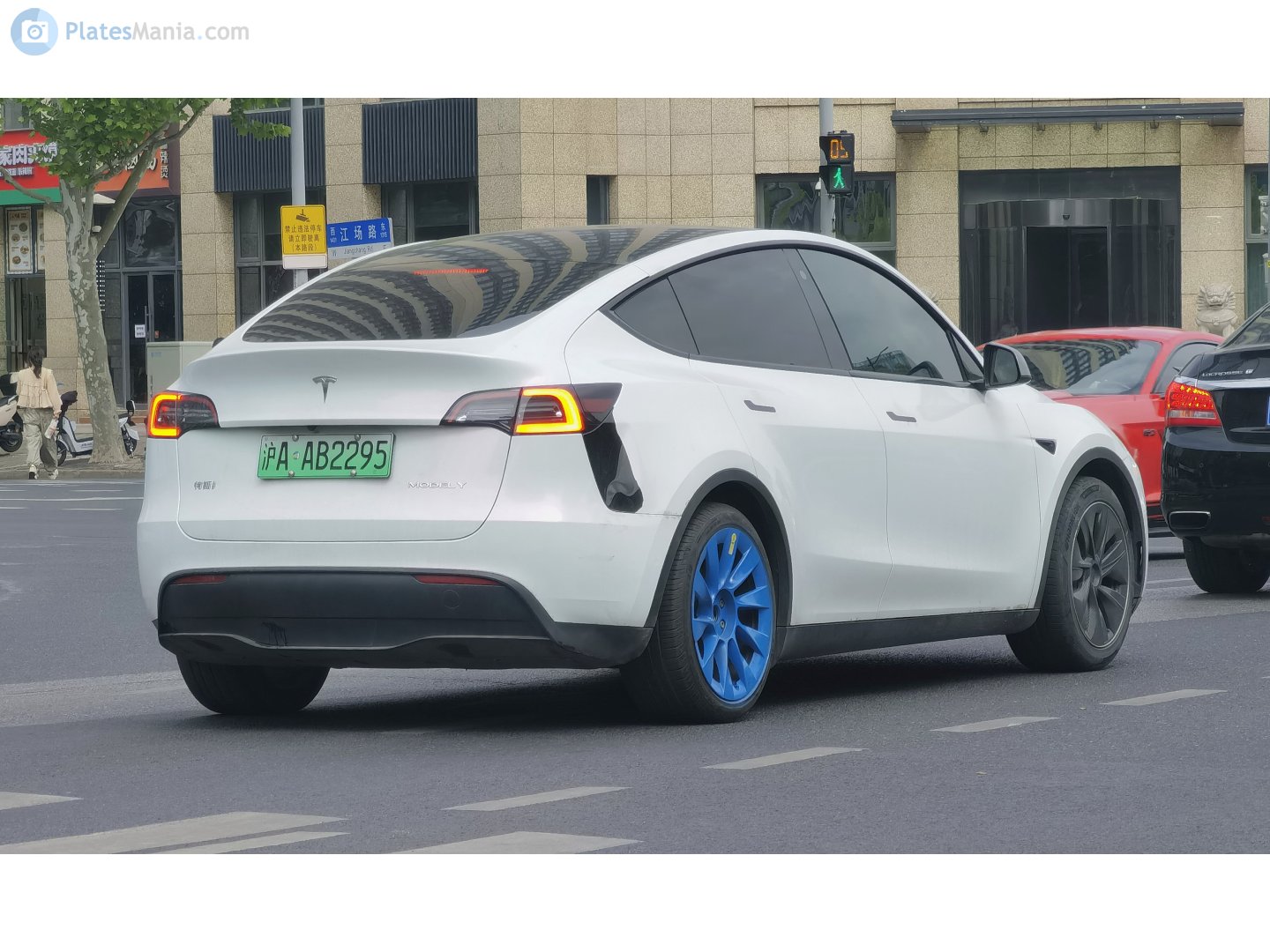
Same thing as before, but we have a whole folder of images. And instead of one at a time, you can make an entire CSV!
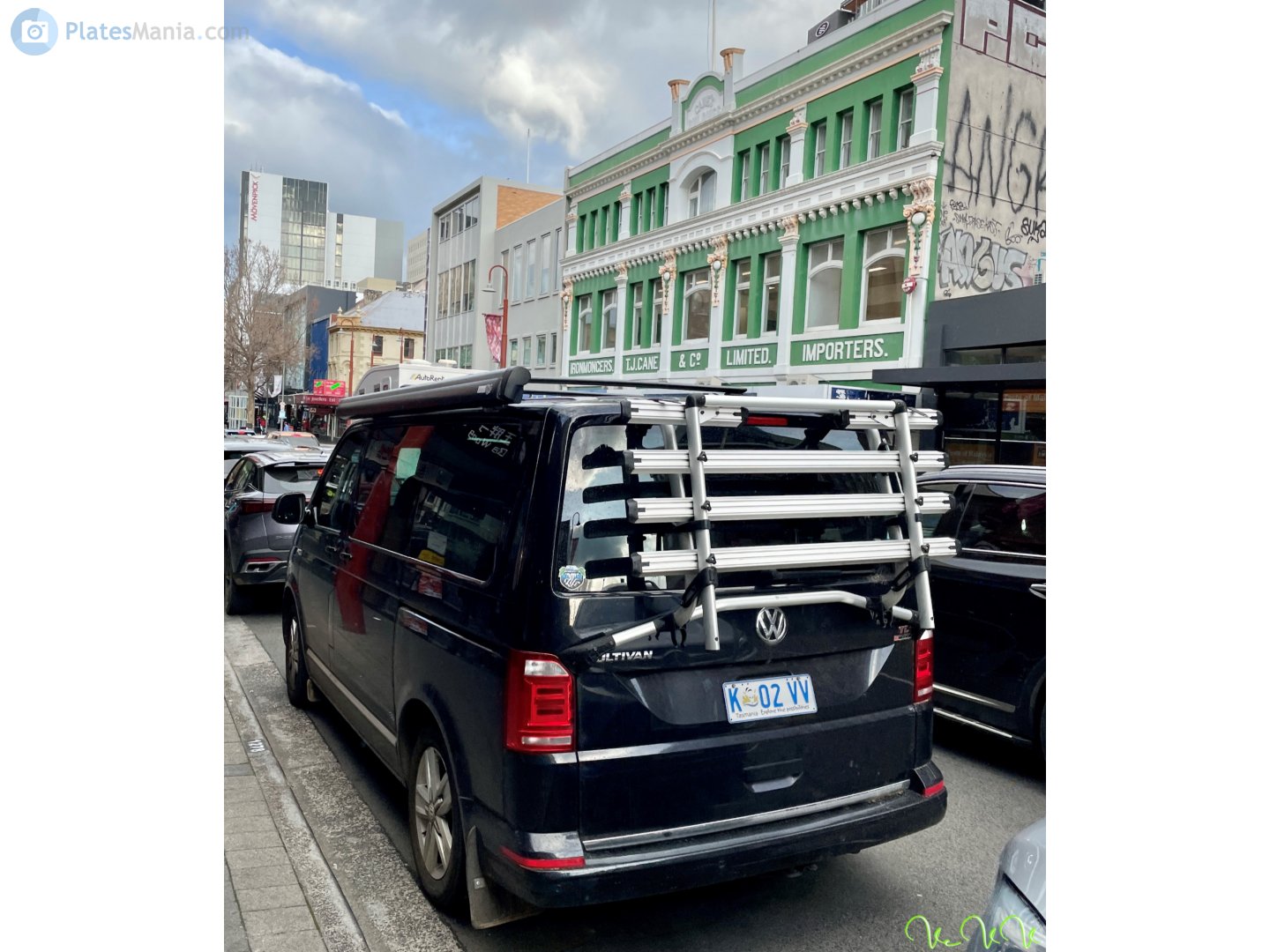
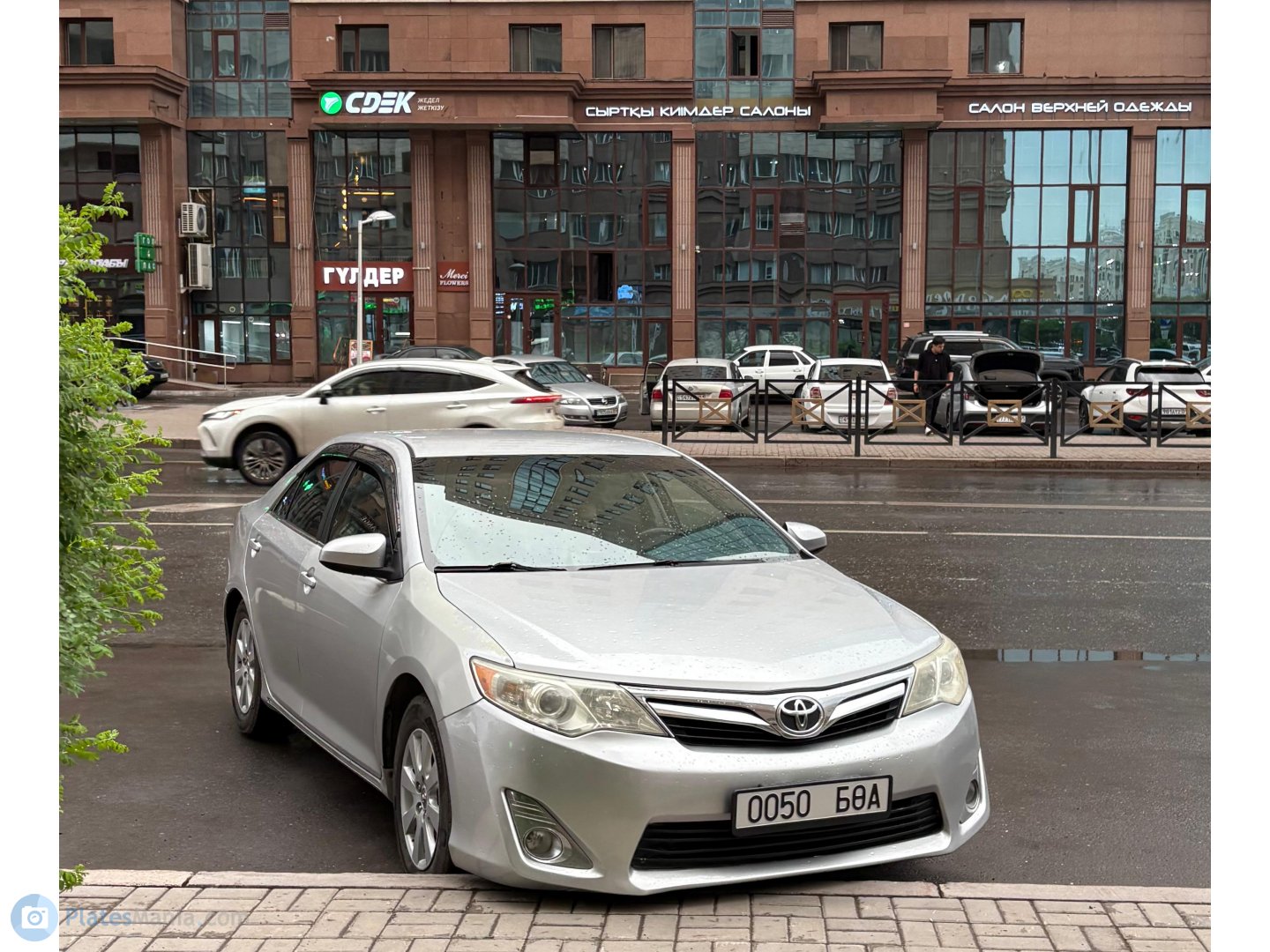
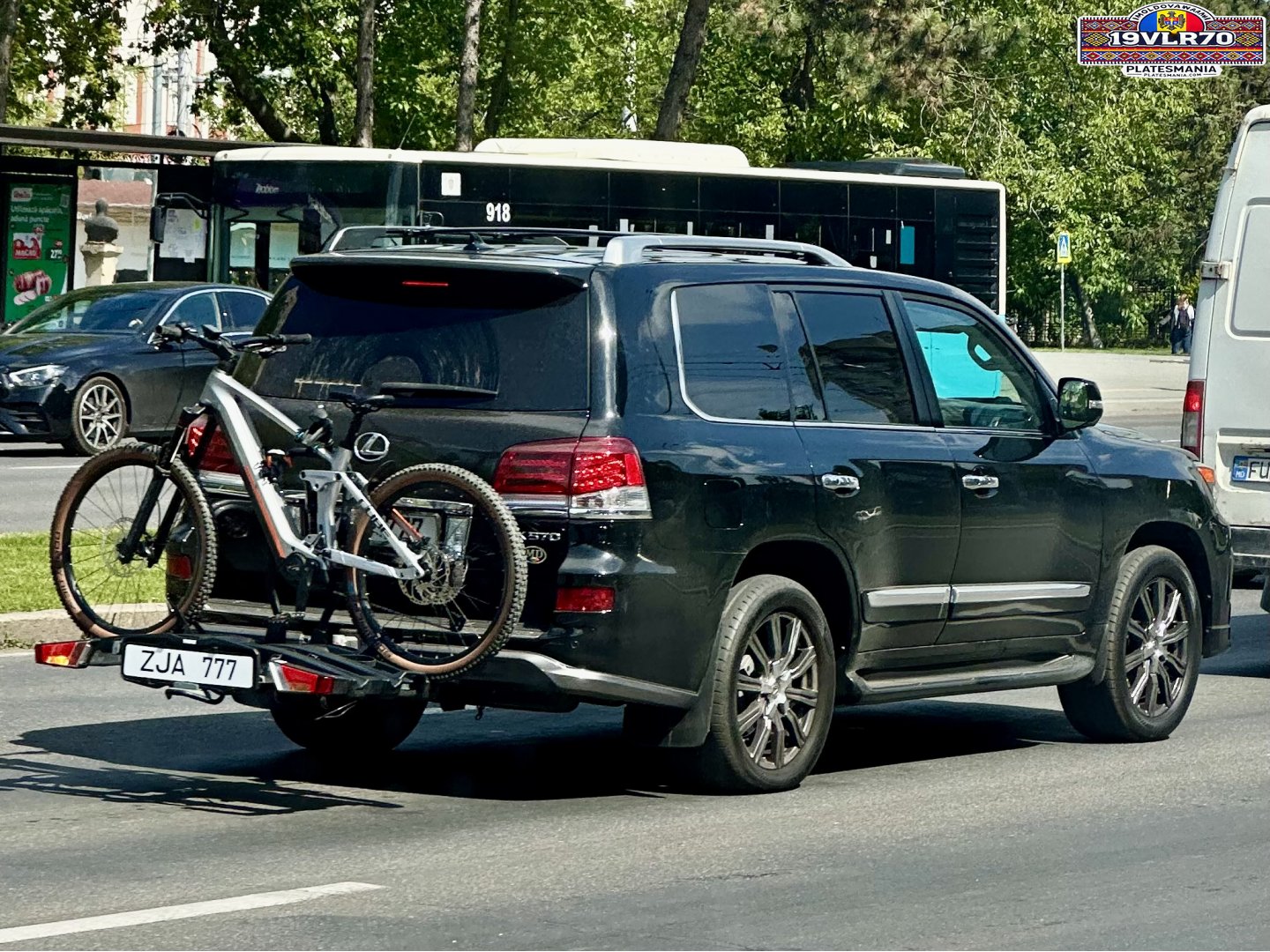
vision-llm/batch.py — Process a folder of images into structured data -> DataFrame -> CSV
from pathlib import Path
import pandas as pd
from pydantic import BaseModel, Field
from pydantic_ai import Agent, BinaryContent
from typing import Literal
MODEL = "openai:gpt-5-nano"
DATA = Path("data")
class Vehicle(BaseModel):
make: str = Field(description="Vehicle manufacturer")
model: str = Field(description="Vehicle model name")
color: str = Field(description="Primary color")
year_estimate: int = Field(description="Estimated model year")
vehicle_type: Literal[
"sedan", "SUV", "truck", "van", "motorcycle", "other"
] = Field(description="Type of vehicle")
confidence: float = Field(description="Confidence in identification, 0.0 to 1.0")
agent = Agent(MODEL, output_type=Vehicle)
Now let's process the images one by one
rows = []
image_paths = sorted((DATA / "cars").glob("*.jpg"))
for image_path in image_paths:
result = agent.run_sync([
"Analyze the vehicle in this image. Fill in all fields.",
BinaryContent(data=image_path.read_bytes(), media_type="image/jpeg"),
])
row = result.output.model_dump()
row["filename"] = image_path.name
rows.append(row)
print(f"Processed {len(rows)} images.")
Processed 5 images.
That loop just processed every image in the folder. Now we have a spreadsheet!
df = pd.DataFrame(rows)
output = Path("outputs") / "cars_analysis.csv"
output.parent.mkdir(parents=True, exist_ok=True)
df.to_csv(output, index=False)
df
| make | model | color | year_estimate | vehicle_type | confidence | filename | |
|---|---|---|---|---|---|---|---|
| 0 | Volkswagen | Multivan | Dark blue | 2015 | van | 0.62 | 28246634.jpg |
| 1 | Toyota | Camry | Silver | 2013 | sedan | 0.80 | 28246768.jpg |
| 2 | Lexus | LX 570 | Black | 2015 | SUV | 0.65 | 28262472.jpg |
| 3 | Toyota | Camry | Yellow | 2016 | sedan | 0.68 | 28262480.jpg |
| 4 | Tesla | Model Y | White | 2021 | SUV | 0.76 | 28266737.jpg |
Open the output CSV. Spot-check a few rows against the source images. Does the make match what you see? Does the color? That's verification — not trusting the model, checking its work.
This is the same approach DW used to measure betting ads in Brazilian football — a custom model classified thousands of frames to count how often each brand appeared on screen.
Swap providers
There are a ton of different providers of LLM stuff and they each have strengths and weaknesses. if you get married to ChatGPT or Claude, you'll never be able to use Gemini's document-processing powers! So instead of using the genai library from Google or the OpenAI library we use Pydantic AI, which allows you a bit more flexibility in swapping between providers.
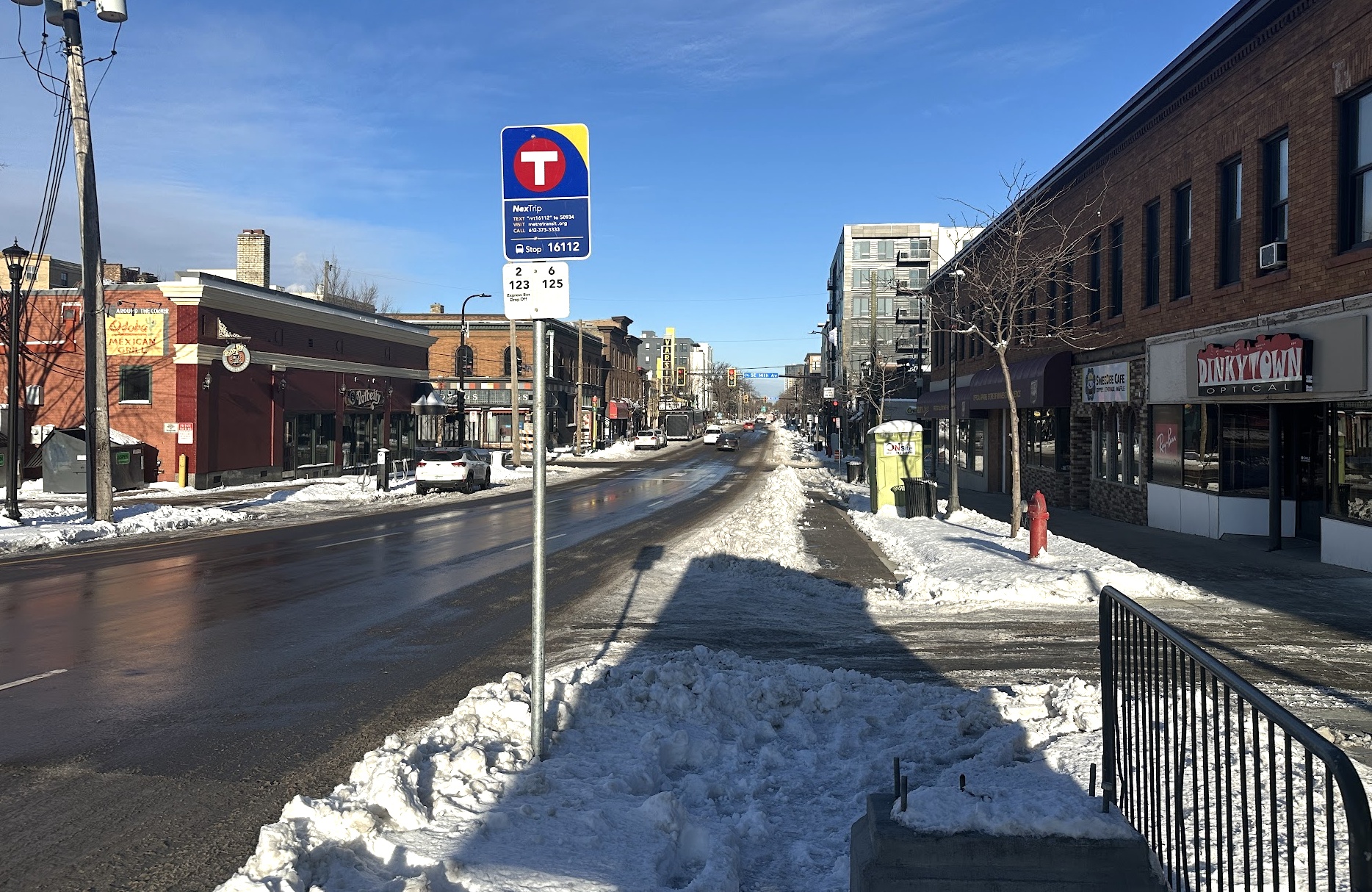
Let's see how they describe this photograph.
vision-llm/providers.py — Same structured-output task with different LLM providers
from pathlib import Path
from pydantic import BaseModel, Field
from pydantic_ai import Agent, BinaryContent
DATA = Path("data")
image_data = (DATA / "city.jpg").read_bytes()
class ImageDescription(BaseModel):
subject: str = Field(description="Main subject of the image")
setting: str = Field(description="Where the image appears to be taken")
mood: str = Field(description="Overall mood or feeling of the image")
details: list[str] = Field(description="3-5 notable details")
You can see a list of available providers and models here. The "ollama" one below doesn't even use the internet: it runs on your own machine!
models = [
"openai:gpt-5-nano",
"google-gla:gemini-2.5-flash",
# "anthropic:claude-3-5-haiku-latest",
# "ollama:qwen3-vl",
]
for model in models:
agent = Agent(model, output_type=ImageDescription)
result = agent.run_sync([
"Describe this image. Fill in all fields.",
BinaryContent(data=image_data, media_type="image/jpeg"),
])
print(f"--- {model} ---")
print(result.output)
--- openai:gpt-5-nano --- subject='Snowy downtown street scene' setting='A small city street with brick storefronts on both sides, snow piled along the sidewalks, a wet road reflecting sunlight, and a clear blue sky.' mood='Bright, crisp, wintry, quiet' details=['Blue bus stop sign in the foreground', 'Snow banks along sidewalks and melted snow on the street', 'Brick buildings with storefronts such as a Mexican restaurant and Pinky Town Optical', 'Bare trees and a few parked cars along the street', 'Long shadows cast by the sun on the snow and pavement']
--- google-gla:gemini-2.5-flash --- subject='A snowy urban street scene' setting='A city street lined with buildings' mood='Crisp, clear, and quiet' details=['A prominent bus stop sign in the foreground', 'Piles of snow on the sidewalks and along the edges of the wet road', "Various brick buildings housing businesses like 'Andy's Old-Style Mexican Cafe' and 'DinkyTown Optical'", 'Cars driving on the wet road in the distance', 'A bright blue sky and harsh shadows indicating clear, sunny weather']
OpenAI, Google, Anthropic, Ollama — the code is identical except for the model name. Pick whichever fits your newsroom's budget, privacy needs, or existing accounts. And if you're feeling especially wild, you can even try out openrouter, which gives you a menu of way more than just the Big Three.
Object detection
Up above we've been describing photos, but there's also object detection - finding the locations of specific things inside of them - faces, cars, signs, whatever. Below we use YOLOE, an "open-vocabulary object detection model:" you tell it what to look for, and it finds it (historically they could only find things they'd already been taught to look for).
Another difference between YOLOE and the above is that we aren't using the cloud, we're using a model which just sits on your own machine. Both faster and more private!

detection/yoloe-coffee.py — YOLOE open-vocab detection — find anything you can describe
from pathlib import Path
from ultralytics import YOLOE
DATA = Path("data")
CLASSES = ["coffee cup", "peanut butter toast", "spiral notebook", "blue pencil", "ballpoint pen", "dog"]
model = YOLOE("yoloe-26l-seg.pt")
model.set_classes(CLASSES)
results = model(str(DATA / "coffee.jpg"), conf=0.1, verbose=False)
for box in results[0].boxes:
cls_name = results[0].names[int(box.cls)]
conf = float(box.conf)
print(f"{cls_name}: {conf:.3f}")
peanut butter toast: 0.843 coffee cup: 0.566 blue pencil: 0.354 blue pencil: 0.277 peanut butter toast: 0.140
Instead of just seeing what's there - and getting confidence scores - let's see where they're at!
import cv2
from PIL import Image as PILImage
annotated = results[0].plot(masks=False)
PILImage.fromarray(cv2.cvtColor(annotated, cv2.COLOR_BGR2RGB))
