Video
You've got image tools and audio tools. Video is both — frames and a soundtrack — so you already have everything you need! Yes, you could send it to Gemini or another LLM (which we do at the end), but you can also just split it up and reuse what you've learned. Just because public meetings come as videos doesn't mean you can't just treat them as audio, and the same way you count or detect objects in images you can do the same thing in videos.
Download
yt-dlp is the best tool for downloading video content on the internet. It's gotten less effect at YouTube in the past 6 months or so, but it's still great for older videos and non-YT sites. Always try it out first!
If you'd prefer something that has a "normal" non-programming-y interface, Stacher is great.
video/download.py — Download a video from YouTube with yt-dlp
from pathlib import Path
import yt_dlp

DATA = Path("data")
URL = "https://www.youtube.com/watch?v=rDXubdQdJYs"

DATA.mkdir(parents=True, exist_ok=True)
VIDEO_ID = URL.split("v=")[1]

existing = list(DATA.glob(f"{VIDEO_ID}.*"))
if existing:
    print(f"Already downloaded: {existing[0].name}")
else:
    ydl_opts = {
        "outtmpl": str(DATA / "%(id)s.%(ext)s"),
        "quiet": True,
        "no_warnings": True,
    }
    with yt_dlp.YoutubeDL(ydl_opts) as ydl:
        ydl.download([URL])
    print(f"Downloaded: {VIDEO_ID}")
Already downloaded: rDXubdQdJYs.mp3
Extract frames
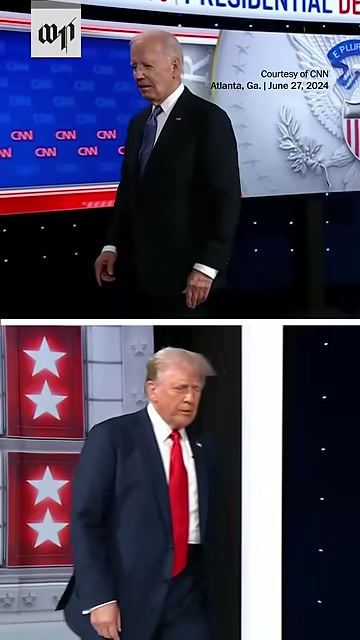
Since you know how to analyze images, why not just separate out the frames in a video? Below we extract one frame every two seconds. Now you have images: use the image tools!
video/frames.py — Extract frames from a video at 1 frame every 2 seconds using ffmpeg-python
import ffmpeg
from pathlib import Path

DATA = Path("data")
VIDEO = DATA / "rDXubdQdJYs.mp4"
OUTPUT = DATA / "debate"
OUTPUT.mkdir(parents=True, exist_ok=True)

(
    ffmpeg
    .input(str(VIDEO))
    .filter("fps", fps=0.5)
    .output(str(OUTPUT / "frame-%03d.jpg"), **{"qscale:v": 2})
    .overwrite_output()
    .run(quiet=True)
)

frames = sorted(OUTPUT.glob("frame-*.jpg"))
print(f"Extracted {len(frames)} frames to {OUTPUT}")
Extracted 30 frames to data/debate
Preview: a sample of what we just extracted.
import matplotlib.pyplot as plt
from PIL import Image

sample = frames[:10]
fig, axes = plt.subplots(2, 5, figsize=(15, 6))
for ax, path in zip(axes.flat, sample):
    ax.imshow(Image.open(path))
    ax.set_title(path.stem, fontsize=8)
    ax.axis("off")
plt.tight_layout()

Extract audio
Same thing for the audio. Now you have audio: use the audio tools!
video/audio.py — Extract audio track from a video file using ffmpeg-python
import ffmpeg
from pathlib import Path

DATA = Path("data")
VIDEO = DATA / "rDXubdQdJYs.mp4"
OUTPUT = Path("outputs")
OUTPUT.mkdir(parents=True, exist_ok=True)

(
    ffmpeg
    .input(str(VIDEO))
    .output(str(OUTPUT / "rDXubdQdJYs.mp3"), acodec="libmp3lame", vn=None)
    .overwrite_output()
    .run(quiet=True)
)

print(f"Audio saved to {OUTPUT / 'rDXubdQdJYs.mp3'}")
Audio saved to outputs/rDXubdQdJYs.mp3
Answering quetsions the slightly risky way
Just like you can ask AI about images, you can also ask about videos! ...at least, for some of the models. Gemini is probably the best: ask a question about the video, get a confident answer. It... may or may not be accurate.
video/vibe-answer.py — The risky way: ask Gemini "who got more screen time?" -- confident answer, no evidence
import time
from pathlib import Path

from pydantic_ai import Agent, VideoUrl
from pydantic_ai.providers.google import GoogleProvider

DATA = Path("data")
VIDEO = DATA / "rDXubdQdJYs.mp4"
MODEL = "google-gla:gemini-2.5-flash"

provider = GoogleProvider()
video_file = provider.client.files.upload(file=str(VIDEO))

while video_file.state.name == "PROCESSING":
    time.sleep(5)
    video_file = provider.client.files.get(name=video_file.name)

agent = Agent(MODEL)
result = agent.run_sync([
    "Who got more screen time in this debate video? "
    "Give me a breakdown of approximately how much time each person was on screen.",
    VideoUrl(url=video_file.uri, media_type=video_file.mime_type),
])

print(result.output)
Based on a manual timing of the video:

*   **Joe Biden** was on screen for approximately **29 seconds**.
*   **Donald Trump** was on screen for approximately **23.5 seconds**.

Therefore, **Joe Biden** got more screen time in this debate video.
While it's convenient, using Gemini is slightly more difficult to fact-check. It's harder to show your editor the work, errors are hidden behind a wall of "just trust me!" It's a vibe, for better or worse.
The boring (auditable) way
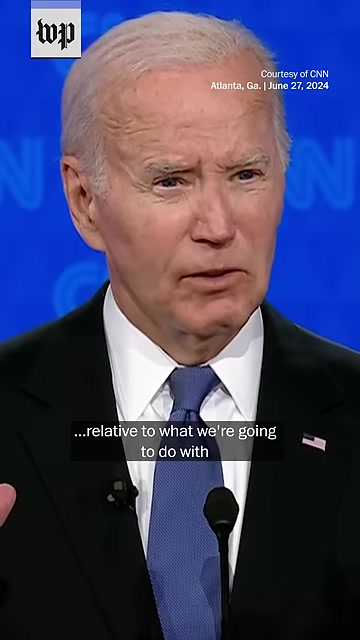
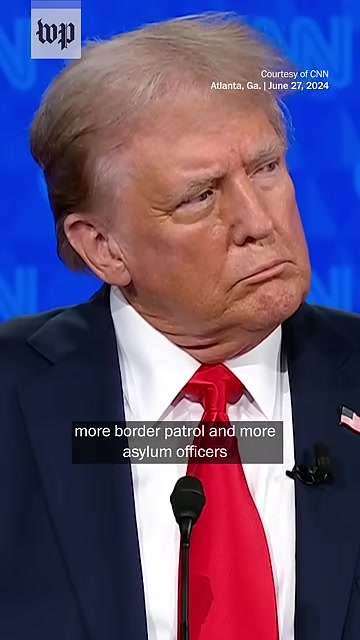
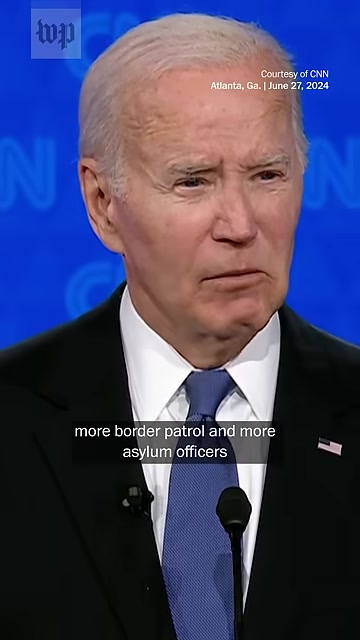
Instead of getting Gemini to go whole-hog on the video analysis, we use our other skills: split into frames, classify each frame with an LLM. This allows you to produce an auditable CSV, where every row links to a frame you can check.
video/decompose-classify.py — The auditable way: classify each frame with Pydantic AI, produce an auditable CSV
from pathlib import Path
import pandas as pd
from pydantic import BaseModel
from pydantic_ai import Agent, BinaryContent

DATA = Path("data")
MODEL = "google-gla:gemini-2.5-flash"
# MODEL = "openai:gpt-5-nano"
FRAMES_DIR = DATA / "debate"
OUTPUT = Path("outputs") / "frame_classifications.csv"

class FrameClassification(BaseModel):
    subject: str
    confidence: float
    speaking: bool
    description: str

agent = Agent(
    MODEL,
    output_type=FrameClassification,
    system_prompt="Classify frames from a political debate. Identify who is on screen, confidence 0-1, whether they are speaking.",
)

frames = sorted(FRAMES_DIR.glob("*.jpg"))
OUTPUT.parent.mkdir(parents=True, exist_ok=True)

rows = []
for i, path in enumerate(frames):
    r = agent.run_sync([
        f"Frame {i}",
        BinaryContent(data=path.read_bytes(), media_type="image/jpeg"),
    ])
    rows.append({"frame": i, **r.output.model_dump()})
    print(f"{path.name}: {r.output.subject} ({r.output.confidence:.2f})")
frame-001.jpg: Joe Biden (0.95)
frame-002.jpg: Joe Biden (1.00)
frame-003.jpg: Donald Trump (1.00)
frame-004.jpg: Joe Biden (0.95)
frame-005.jpg: Donald Trump (1.00)
frame-006.jpg: Donald Trump (0.90)
frame-007.jpg: Donald Trump (1.00)
frame-008.jpg: Joe Biden (1.00)
frame-009.jpg: Joe Biden (0.95)
frame-010.jpg: Donald Trump (1.00)
frame-011.jpg: Joe Biden (1.00)
frame-012.jpg: Joe Biden (1.00)
frame-013.jpg: Joe Biden (0.95)
frame-014.jpg: Joe Biden (1.00)
frame-015.jpg: Joe Biden (0.95)
frame-016.jpg: Donald Trump (1.00)
frame-017.jpg: Donald Trump (0.95)
frame-018.jpg: Joe Biden (1.00)
frame-019.jpg: Joe Biden (1.00)
frame-020.jpg: Joe Biden (1.00)
frame-021.jpg: Donald Trump (0.95)
frame-022.jpg: Joe Biden (0.95)
frame-023.jpg: Joe Biden (1.00)
frame-024.jpg: Joe Biden (1.00)
frame-025.jpg: Donald Trump (1.00)
frame-026.jpg: Donald Trump (0.99)
frame-027.jpg: Donald Trump (0.95)
frame-028.jpg: Joe Biden (1.00)
frame-029.jpg: Joe Biden (1.00)
frame-030.jpg: Joe Biden (1.00)
Every frame is now a row. You can sort, filter, and fact-check any one of them.
df = pd.DataFrame(rows)
df.to_csv(OUTPUT, index=False)
print(f"Saved {len(df)} frames to {OUTPUT}")

df
Saved 30 frames to outputs/frame_classifications.csv
| frame | subject | confidence | speaking | description | |
|---|---|---|---|---|---|
| 0 | 0 | Joe Biden | 0.95 | False | Joe Biden is on screen, walking onto the stage. |
| 1 | 1 | Joe Biden | 1.00 | True | Joe Biden is speaking at a political debate ho... |
| 2 | 2 | Donald Trump | 1.00 | True | Donald Trump is on screen during a political d... |
| 3 | 3 | Joe Biden | 0.95 | True | Joe Biden is on screen, likely speaking, as a ... |
| 4 | 4 | Donald Trump | 1.00 | True | Donald Trump, former president, is on screen, ... |
| 5 | 5 | Donald Trump | 0.90 | True | Donald Trump, former president, is speaking du... |
| 6 | 6 | Donald Trump | 1.00 | True | Donald Trump is speaking at a political debate... |
| 7 | 7 | Joe Biden | 1.00 | True | Joe Biden is on screen, speaking. His mouth is... |
| 8 | 8 | Joe Biden | 0.95 | True | Joe Biden is speaking during a political debat... |
| 9 | 9 | Donald Trump | 1.00 | True | Donald Trump is speaking, visible from the che... |
| 10 | 10 | Joe Biden | 1.00 | True | Joe Biden is on screen, appearing to be speaki... |
| 11 | 11 | Joe Biden | 1.00 | True | Joe Biden is on screen, speaking during a poli... |
| 12 | 12 | Joe Biden | 0.95 | True | Joe Biden is speaking at a political debate, w... |
| 13 | 13 | Joe Biden | 1.00 | True | Joe Biden is on screen, speaking during a poli... |
| 14 | 14 | Joe Biden | 0.95 | True | Joe Biden is on screen, mid-sentence, wearing ... |
| 15 | 15 | Donald Trump | 1.00 | True | Donald Trump is on screen, speaking during a p... |
| 16 | 16 | Donald Trump | 0.95 | True | Donald Trump is on screen and speaking. Subtit... |
| 17 | 17 | Joe Biden | 1.00 | True | Joe Biden is speaking, with his eyes closed an... |
| 18 | 18 | Joe Biden | 1.00 | True | Joe Biden is speaking at a political debate. T... |
| 19 | 19 | Joe Biden | 1.00 | True | Joe Biden is speaking at a debate, looking dow... |
| 20 | 20 | Donald Trump | 0.95 | True | Donald Trump is on screen, wearing a suit and ... |
| 21 | 21 | Joe Biden | 0.95 | True | Joe Biden is on screen, speaking into a microp... |
| 22 | 22 | Joe Biden | 1.00 | True | Joe Biden is on screen and appears to be speak... |
| 23 | 23 | Joe Biden | 1.00 | False | Joe Biden is on screen. Based on the text over... |
| 24 | 24 | Donald Trump | 1.00 | True | Donald Trump is speaking at a debate, wearing ... |
| 25 | 25 | Donald Trump | 0.99 | True | Donald Trump is speaking during a political de... |
| 26 | 26 | Donald Trump | 0.95 | True | Donald Trump is on screen, speaking. His mouth... |
| 27 | 27 | Joe Biden | 1.00 | True | Joe Biden is speaking during a political debat... |
| 28 | 28 | Joe Biden | 1.00 | True | Joe Biden is on screen, speaking during a poli... |
| 29 | 29 | Joe Biden | 1.00 | True | Joe Biden is speaking at a political debate, w... |
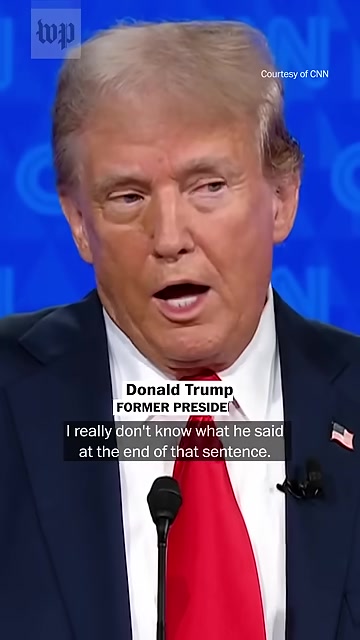
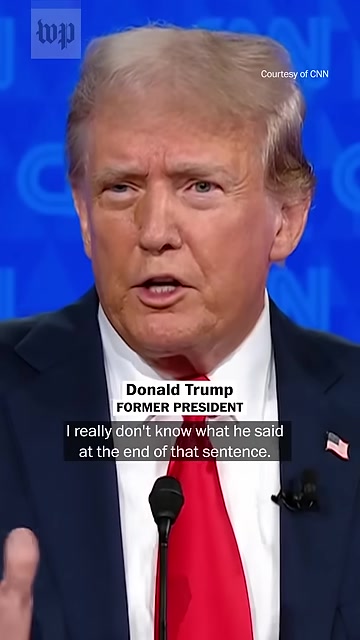
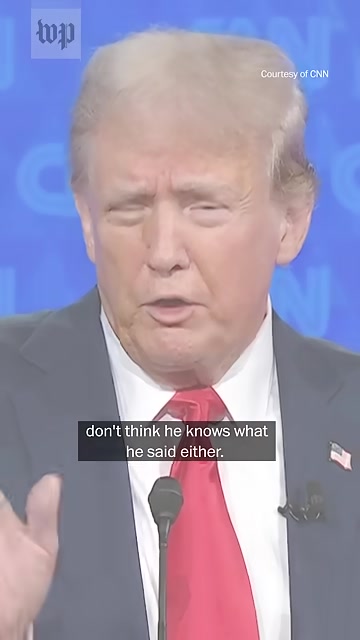
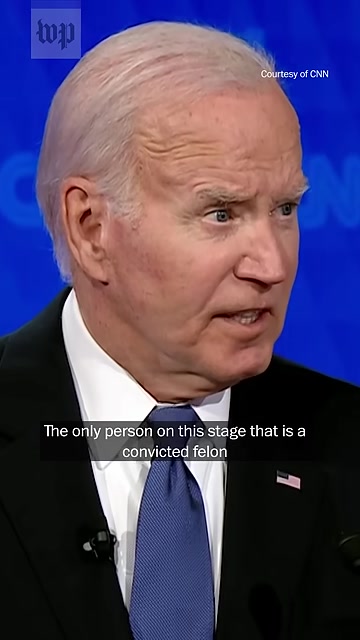
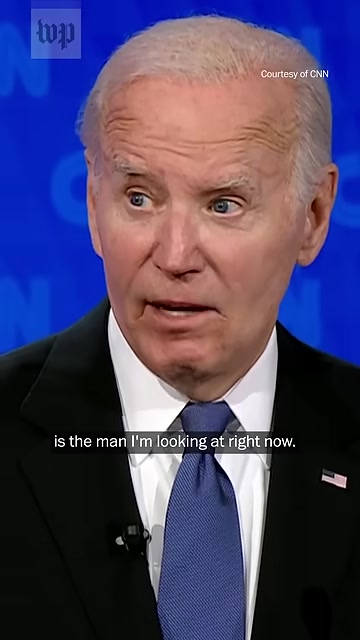
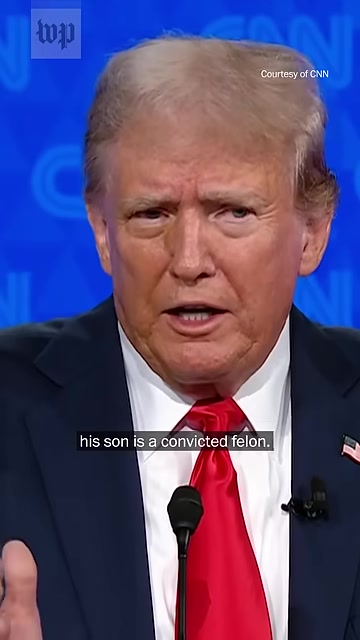
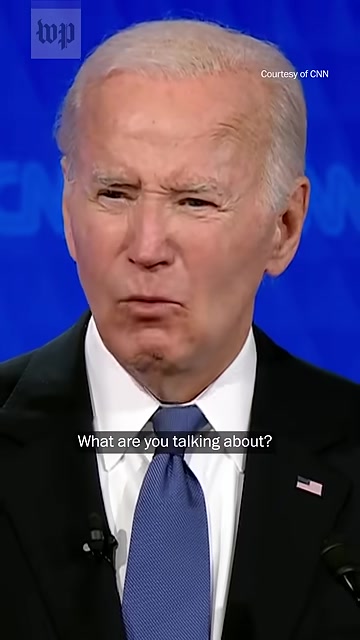
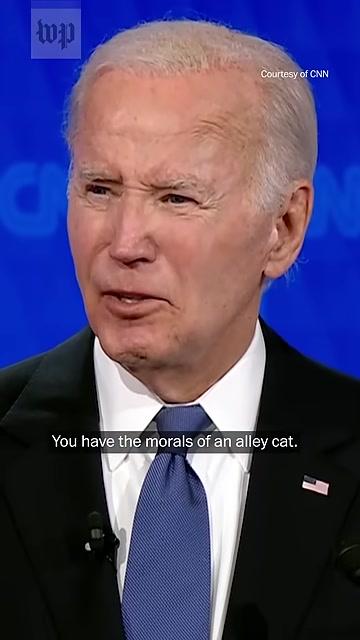
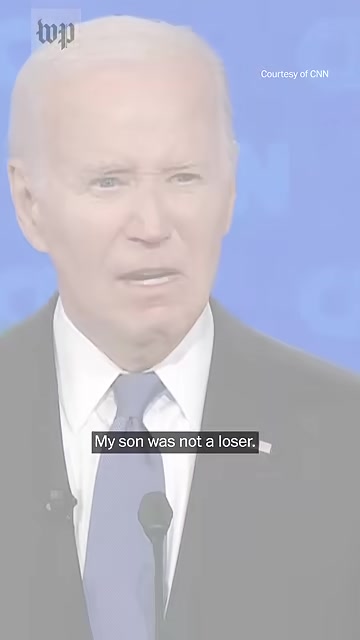
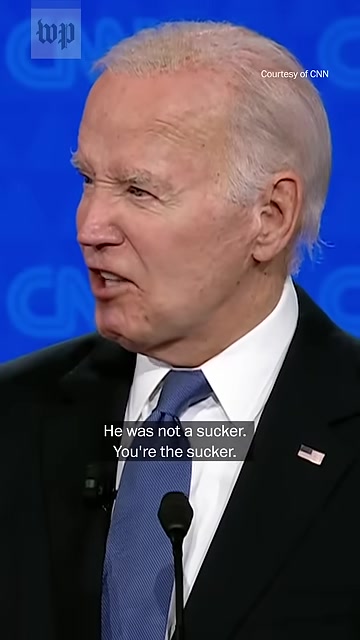
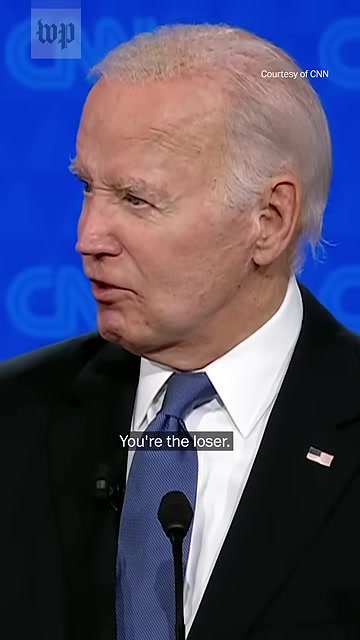
Even if the vibe answer was right, sometimes verification is more important than ease of use.
What's this for?
These are the pipelines behind real investigations!
- Documented examined hundreds of TikTok videos: download, extract audio, transcribe with Whisper.
- Público processed 7,616 TikTok health videos the same way, then used GPT-4o to extract verifiable claims from the transcripts.
- DW used a custom detection model to count betting ads in Brazilian football broadcasts
Up next: Putting it all together — full pipelines and checking your work.