Natural PDF
A Python library for PDF extraction built on pdfplumber. Find and extract content using CSS-like selectors and spatial navigation. Simple code that makes sense.
Demos:
Installation
Section titled “Installation”pip install natural-pdf# All the extraspip install "natural-pdf[all]"Quick Example
Section titled “Quick Example”from natural_pdf import PDF
pdf = PDF('https://github.com/jsoma/natural-pdf/raw/refs/heads/main/pdfs/01-practice.pdf')page = pdf.pages[0]
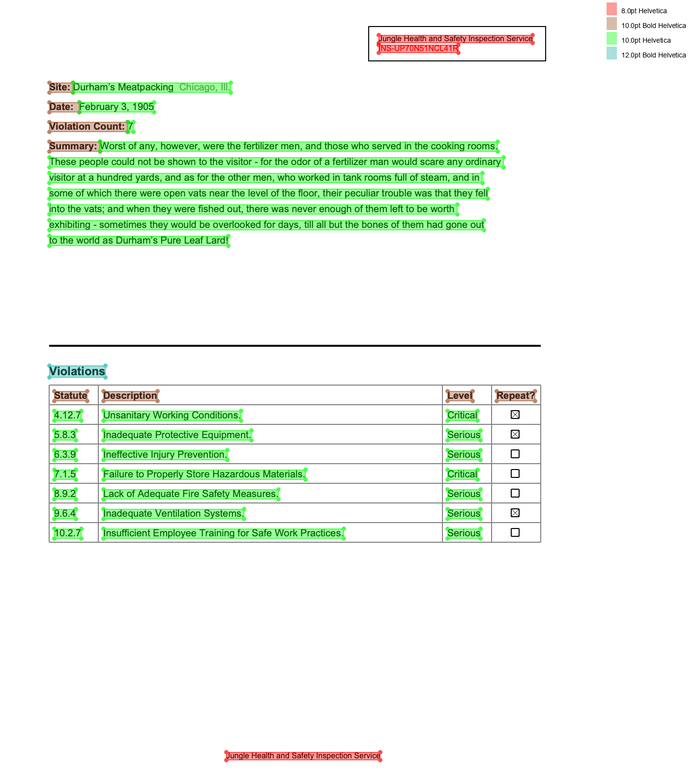
# Find the title and get content below ittitle = page.find('text:contains("Summary"):bold')content = title.below().extract_text()
# Exclude everything above 'CONFIDENTIAL' and below last line on pagepage.add_exclusion(page.find('text:contains("CONFIDENTIAL")').above())page.add_exclusion(page.find_all('line')[-1].below())
# Get the clean text without header/footerclean_text = page.extract_text()Where to Go
Section titled “Where to Go”The documentation is organized into six sections:
- Get Started - Install Natural PDF (base vs.
[all]), open a PDF, and extract your first value and table. Includes a translation guide for pdfplumber users. - Learn - A six-part course: text and tables, OCR, AI extraction, page structure, grids, and putting it together across whole documents.
- Concepts - How the library actually works: the spatial model, how text becomes elements, exclusions, selectors, a table-extraction decision guide, and engines and models.
- Solve - Worked solutions to real problem documents: multi-column reflow, zebra-stripe tables, pixelated scans, multi-page tables, and more.
- Troubleshooting - Symptom-indexed fixes for empty extractions, garbled text, missed rows, and OCR failures.
- For Agents - Canonical patterns, return types, and anti-patterns for LLMs and coding agents writing Natural PDF code.
Key Features
Section titled “Key Features”Find Elements with Selectors
Section titled “Find Elements with Selectors”Use CSS-like selectors to find text, shapes, and more.
# Find bold text containing "Revenue"page.find('text:contains("Revenue"):bold').extract_text()
# Find all large textpage.find_all('text[size>=12]').extract_text()
Navigate Spatially
Section titled “Navigate Spatially”Move around the page relative to elements, not just coordinates.
# Extract text below a specific headingintro_text = page.find('text:contains("Introduction")').below().extract_text()
# Extract text from one heading to the nextmethods_text = page.find('text:contains("Methods")').below(    until='text:contains("Results")').extract_text()
Extract Clean Text
Section titled “Extract Clean Text”Easily extract text content, automatically handling common page elements like headers and footers (if exclusions are set).
# Extract all text from the page (respecting exclusions)page_text = page.extract_text()
# Extract text from a specific regionsome_region = page.find(...)region_text = some_region.extract_text()
Apply OCR
Section titled “Apply OCR”Extract text from scanned documents using various OCR engines.
# Apply OCR using the default enginepage.apply_ocr()
# Select the OCR text if you need the created elementsocr_elements = page.find_all("text[source=ocr]")
# Extract text (will use OCR results if available)text = page.extract_text()
OCR supports recognition (default), detection refresh (detect_only=True),
and custom recognition (function=). Replacement is strict:
replace="ocr", "all", or "none"; booleans and the removed
ocr_function= keyword are rejected. Detection preserves existing native and
recognized text. PDF.apply_ocr also supports pages= and show_progress=;
PDFCollection.apply_ocr supports max_workers=.
Analyze Document Layout
Section titled “Analyze Document Layout”Use AI models to detect document structures like titles, paragraphs, and tables.
# Detect document structurepage.analyze_layout()
# Highlight titles and tablespage.find_all('region[type=title]').show()page.find_all('region[type=table]').show()
# Extract data from the first tabletable_data = page.find('region[type=table]').extract_table()
Recover Difficult Tables
Section titled “Recover Difficult Tables”Use guides and row anchors when a table is visually clear but automatic table extraction misses rows or columns.
header = page.find('text:contains("CASE #")')texts = list(page.find_all("text"))header_row = [el for el in texts if abs(el.top - header.top) <= 2]row_anchors = [    el    for el in texts    if el.extract_text().strip().startswith("23-") and el.top > header.top]
df = page.extract_table_guided(    header_row,    row_anchors,    cell_extract="words",    cell_overlap="center",).to_df()
For row-shaped content that is not a full table, use stable visual anchors:
rows = pdf.pages.extract_anchored_rows( lambda page: [ el for el in page.find_all("text") if el.extract_text().strip().isdigit() and el.x1 < 70 ], side="right",)clean_lines = [row.text for row in rows]Document Question Answering
Section titled “Document Question Answering”Ask natural language questions directly to your documents.
# Ask a questionresult = page.ask("What was the company's revenue in 2022?")print(f"Answer: {result.answer}")Visualize Your Work
Section titled “Visualize Your Work”Debug and understand your extractions visually.
# Highlight headingspage.find_all('text[size>=14]').show(color="red", label="Headings")
# Launch the interactive viewer (Jupyter)page.viewer()
Reference
Section titled “Reference”- Selector Reference - Every selector, pseudo-class, and attribute filter
- Engine Reference - OCR, layout, and extraction engines with install commands
- Installation Extras - What each
pip install "natural-pdf[...]"extra contains - API Reference - Complete library documentation