Page structure: columns and flows
Everything so far assumed a page reads top to bottom. Plenty of pages don’t: newsletters flow down one column and up into the next, records run across page breaks. This page is about telling Natural PDF what the structure is — first by hand, then with a layout model.
When reading order lies
Section titled “When reading order lies”Here’s a three-column page:
from natural_pdf import PDF
pdf = PDF("pdfs/multicolumn.pdf")page = pdf.pages[0]page.show()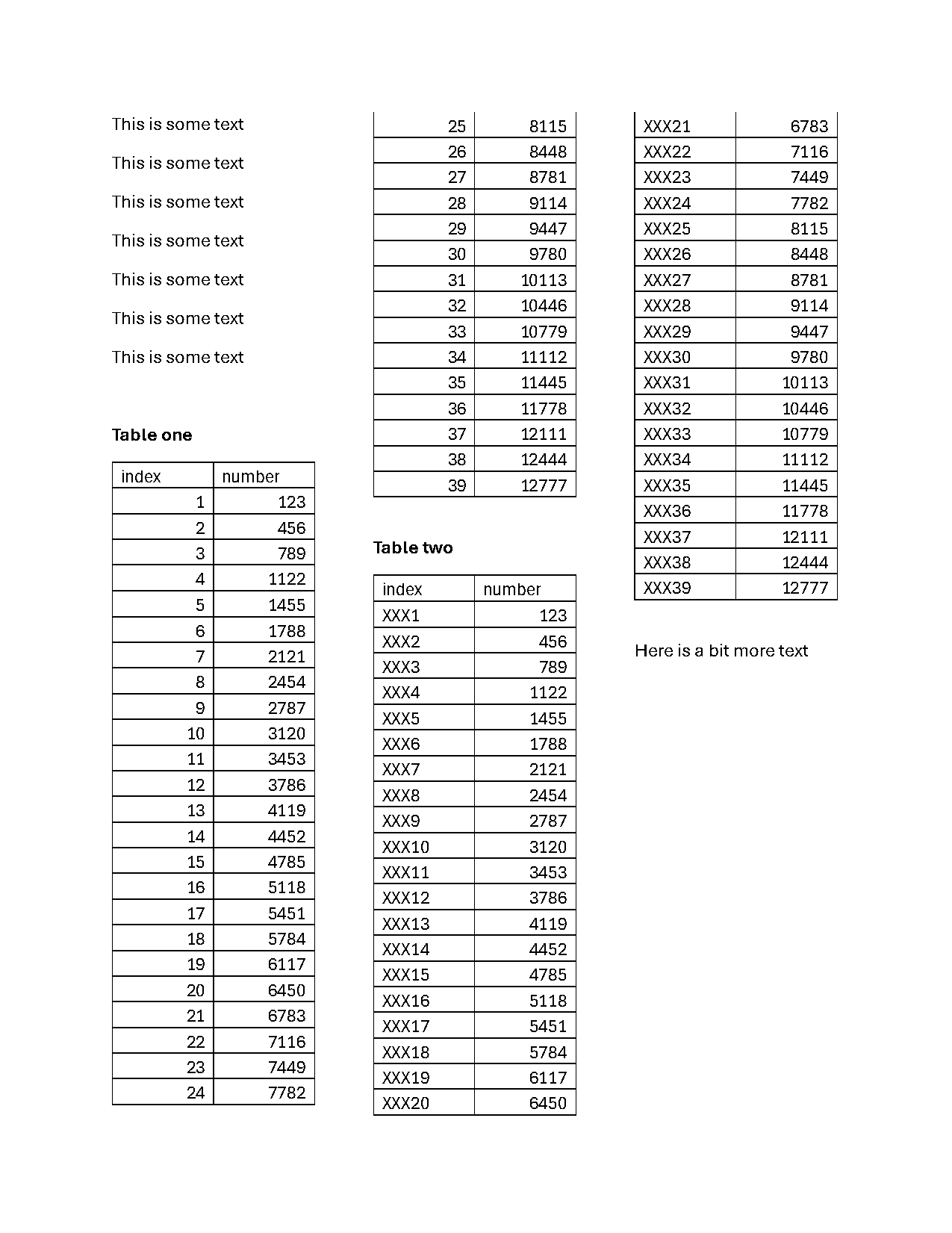
Extract the text and watch the columns collide:
print(page.extract_text()[:300])This is some text 25 8115 XXX21 6783
This is some text 26 8448 XXX22 7116
27 8781 XXX23 7449
This is some text 28 9114 XXX24 7782
29 9447 XXX25 8115
This is some text
30 9780 XXX26 8448
This is some text 31 10113 XXX27 8781
32 10446 XXX28 9114
This is some text
33 10779 XXX29 9447
This is some textThat’s not the page’s content — it’s three columns read side-by-side, line by line. “This is some text 25 8115 XXX21 6783” is one line from each column, stitched together. Every tool downstream of extract_text() inherits this scrambled order until you fix it.
Cut the page into columns
Section titled “Cut the page into columns”You already know page.region() from the exclusions section. Cut three full-height strips — top and bottom default to the page edges, so only the x-coordinates are needed:
left = page.region(left=0, right=page.width / 3)mid = page.region(left=page.width / 3, right=2 * page.width / 3)right = page.region(left=2 * page.width / 3, right=page.width)mid.show(crop=True)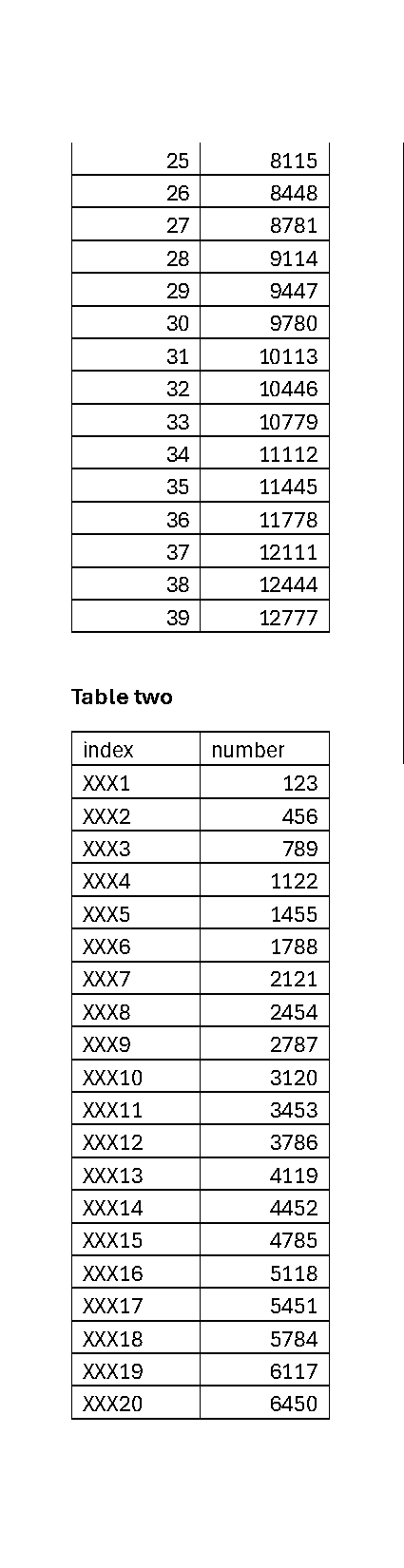
Each strip on its own reads correctly. What’s missing is the glue: “the bottom of left continues at the top of mid.”
Reflow with Flow
Section titled “Reflow with Flow”Flow is that glue — an ordered list of segments declared to be one continuous surface:
from natural_pdf.flows import Flow
flow = Flow(segments=[left, mid, right], arrangement="vertical")flow.show(in_context=False)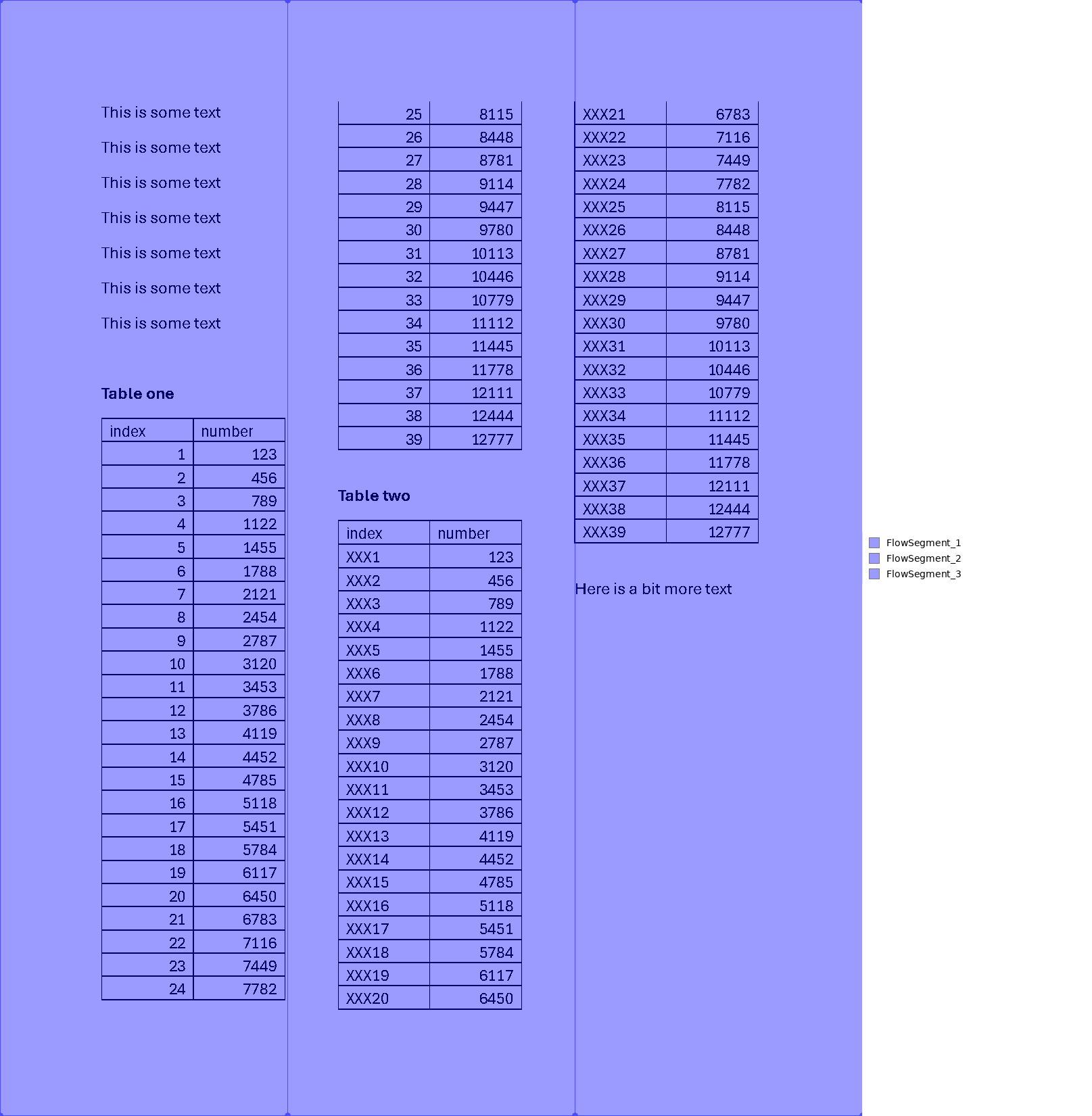
in_context=False draws the segments on the original page, labeled in reading order. (The default flow.show() instead stacks the segments into one very tall strip — the “what it reads like” view.) Text now comes out in column order:
print(flow.extract_text()[:150])This is some text
This is some text
This is some text
This is some text
This is some text
This is some text
This is some text
Table one
index number
1Navigate the flow like one page
Section titled “Navigate the flow like one page”The point of a Flow isn’t just text order — every selector and spatial move works across the seams. “Table one” starts near the bottom of the first column and continues at the top of the second. Ask for everything between the two table headings:
table_one = ( flow .find('text:contains("Table one")') .below(until='text:contains("Table two")', include_endpoint=False))table_one.show()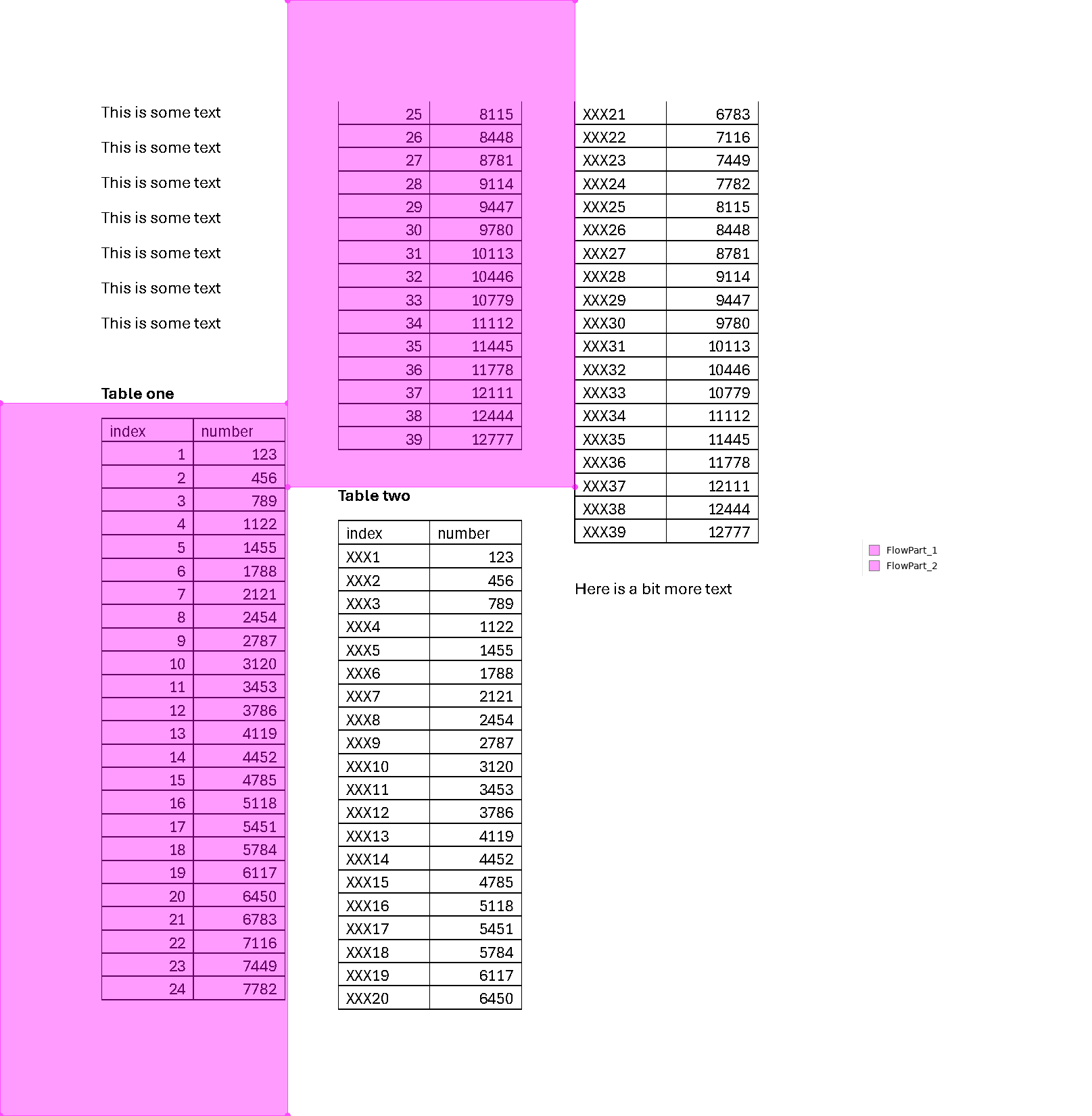
That’s a FlowRegion — one logical region in two physical pieces, and .below() walked straight through the column break. Extract the table from it:
df = table_one.extract_table().to_df()len(df)39df["index"].tolist()[22:27]['23', '24', '25', '26', '27']All 39 rows arrive, including row 25 — the first line after the column break. That row is the classic casualty of tables that cross a seam: the ruling line that closes its cells lives in the previous column, so per-piece grid detection used to drop it. natural-pdf now detects that seam pattern and recovers the row automatically. It’s still good practice to count your rows against the source (table_one.extract_text()) when a table crosses columns or pages — seams are where table extraction earns its skepticism.
The same navigation scales to “every table in the document.” Find all the bold headings, then take everything below each one until the next heading — the | in the selector means or, and here it stops the region at either another bold heading or the closing paragraph:
tables = ( flow .find_all('text[width>10]:bold') .below( until='text[width>10]:bold|text:contains("Here is a bit")', include_endpoint=False, ))tables.show()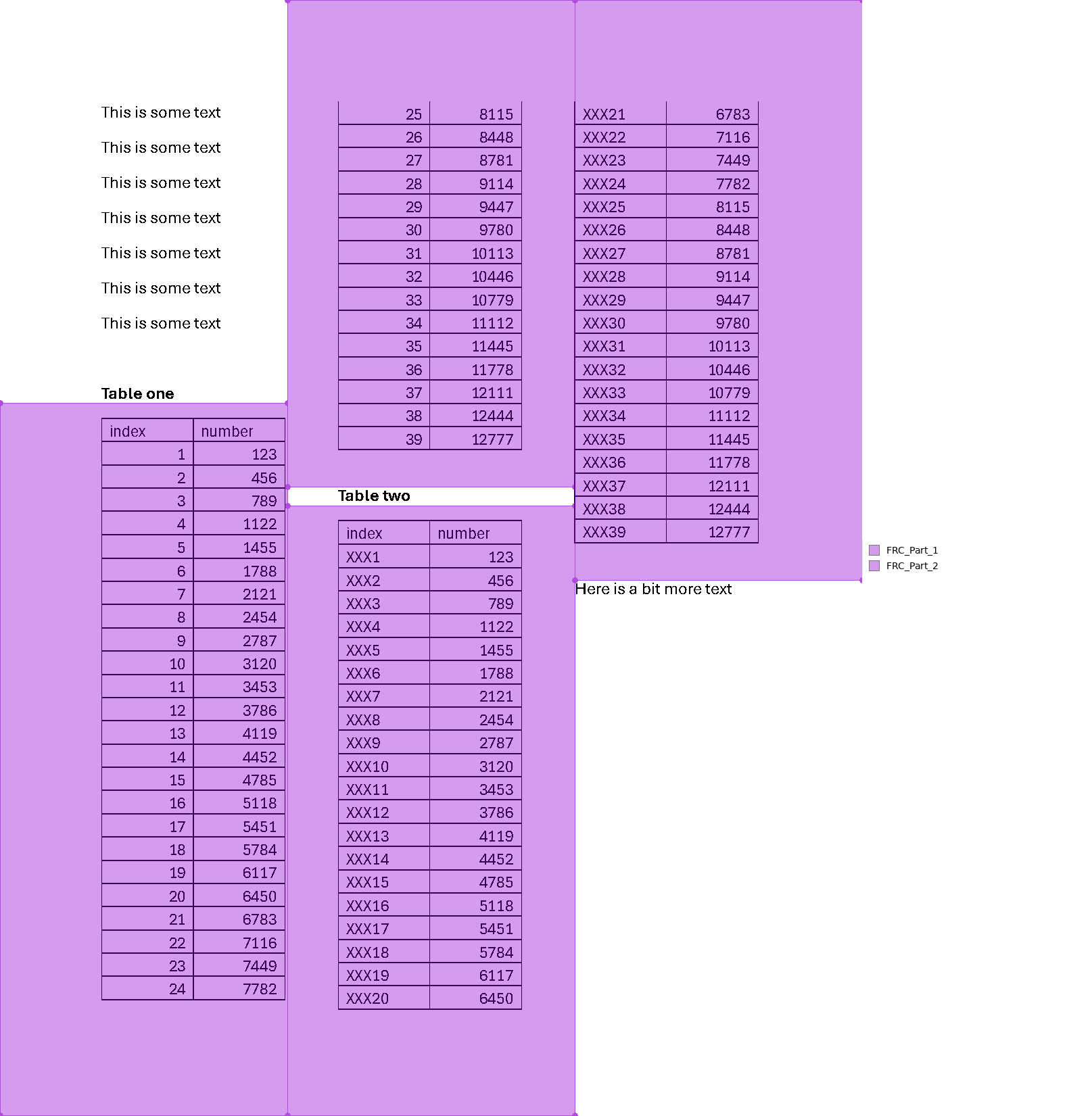
tables[1].extract_table().to_df().head()| index | number | |
|---|---|---|
| 0 | XXX1 | 123 |
| 1 | XXX2 | 456 |
| 2 | XXX3 | 789 |
| 3 | XXX4 | 1122 |
| 4 | XXX5 | 1455 |
([width>10] filters out some zero-width stray elements this PDF hides in the margins — inspect() is how you’d discover that yourself.)
Crossing pages, not just columns
Section titled “Crossing pages, not just columns”Columns are the manual case. Page breaks are so common that spatial navigation handles them directly with multipage=True — no Flow required. Here’s a school district’s library weeding log (the next page dissects it fully; right now it makes one point). The June 6 batch says it removed 130 copies, and its entries run on for several pages:
books = PDF("pdfs/Atlanta_Public_Schools_GA_sample.pdf")first = books.pages[0]first.find('text:contains("6/6/2023")').extract_text()'6/6/2023 - Copies Removed: 130'Every book title in this log ends with its removed count, so text:contains("(Removed:") counts titles. Plain .below() stops at the bottom of page 1:
header = first.find('text:contains("6/6/2023")')len(header.below().find_all('text:contains("(Removed:")'))3Three titles — the rest of the batch is on pages 2 through 5. Add multipage=True:
batch = header.below(multipage=True)(type(batch).__name__, len(batch.find_all('text:contains("(Removed:")')))('FlowRegion', 33)Same move, but the region kept going through four page breaks and came back as a FlowRegion — 33 title lines instead of 3:
batch.show(resolution=30)
Group pages by what’s on them
Section titled “Group pages by what’s on them”One more structural tool, for whole documents instead of single pages. A FOIL response from Niagara Falls: 4 pages of request paperwork, then 43 pages of police-call logs sorted newest-first. pages.groupby() files each page into a bucket based on what a selector (or any function) finds on it:
log = PDF("pdfs/24480polcompleted.pdf")
def year_of(page):    incident = page.find('text:starts-with("NF-")')   # e.g. NF-00045065-24    return "20" + incident.extract_text()[-2:] if incident else "request paperwork"
for year, pages in log.pages.groupby(year_of, show_progress=False):    print(f"{year}: {len(pages)} pages")
request paperwork: 4 pages
2024: 9 pages
2023: 7 pages
2022: 6 pages
2021: 7 pages
2020: 6 pages
2019: 4 pages
2018: 4 pagesGroups iterate pandas-style, and each value is a real PageCollection — so each year’s pages can be shown, extracted, or saved to their own PDF like any other collection. When the grouping key is printed on the page (a chapter title, a form type), skip the function and pass a selector: pages.groupby('text[size=16]') groups by each page’s first size-16 text.
Asking a model where things are
Section titled “Asking a model where things are”Everything above required you to know the structure. Layout models claim to find it for you: hand them a page image, get back labeled regions. This is genuinely useful when the page has no readable text at all — so here’s the scanned inspection report from the OCR page:
scan = PDF("pdfs/needs-ocr.pdf")spage = scan.pages[0]spage.analyze_layout('yolo')spage.find_all('region').show(group_by='type')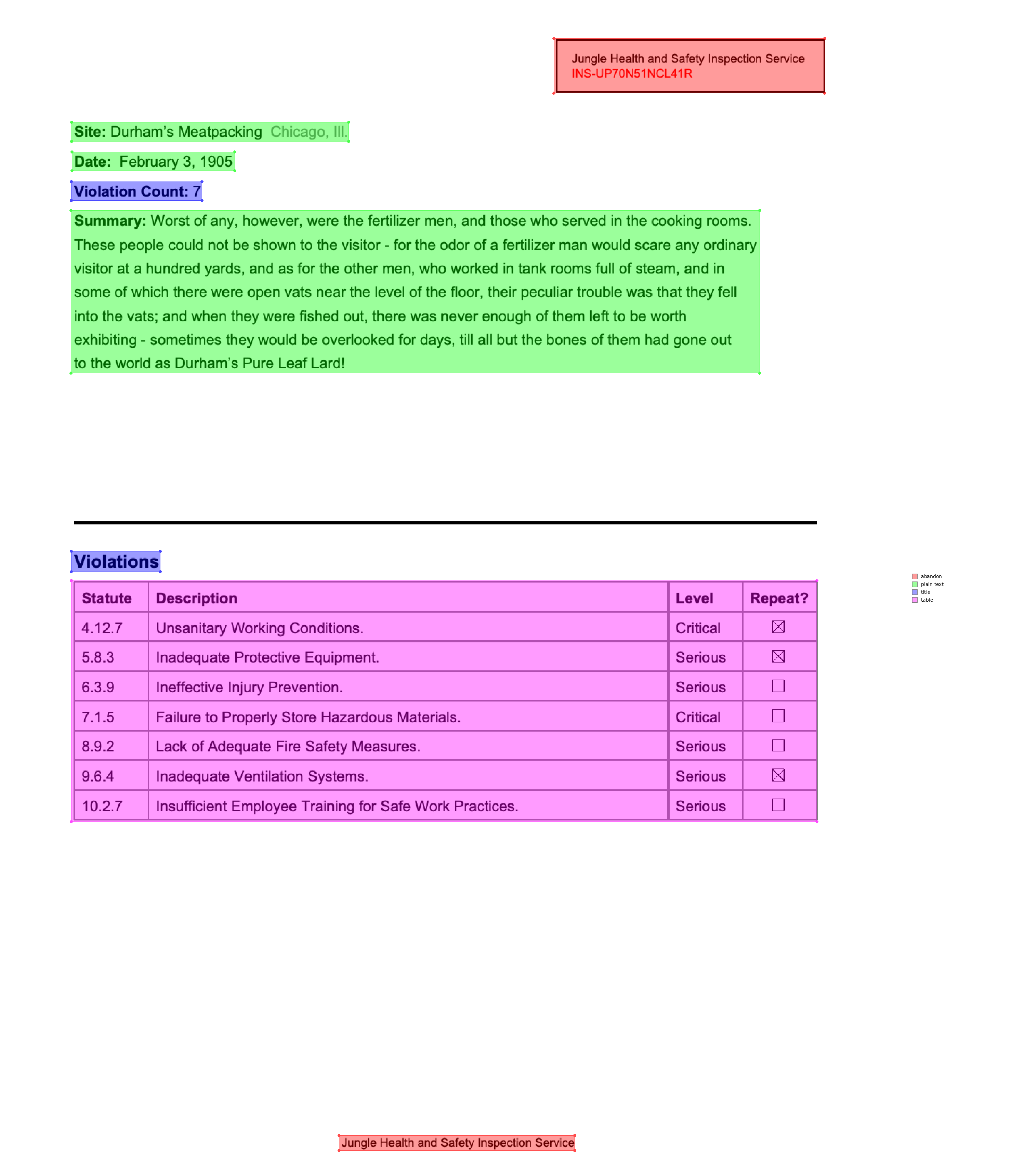
Detected regions become elements matchable as region[type=table], region[type=title], and so on — so spage.find('region[type=table]') is a ready-made region you could scope OCR or extraction to.
Now the honest editorial: these models are trained mostly on academic papers, and the further your documents get from that, the shakier the boxes. Look at what it did here: the letterhead — including the inspection ID this whole track has anchored on — is labeled abandon (the model’s word for “page furniture, ignore this”), and “Violation Count: 7”, which is data, is labeled title. If the page has readable text, an anchor like find('text:contains("Violations")').below() is more precise, more debuggable, and doesn’t need a GPU. Layout models earn their download when there’s no text to anchor on — and even then, they only tell you where the table is, not where its rows and columns are. For that, the next page builds the grid from evidence with guides.
What you can do now
Section titled “What you can do now”Rebuild reading order with regions and Flow, navigate and extract across column seams and page breaks (multipage=True), bucket a document’s pages with groupby(), and get labeled regions from a layout model — knowing when not to bother. Next: build a table grid out of whatever evidence a scan actually offers.